How To Boost Your Workplace Productivity and Reduce Smartphone Distractions
In today’s work environment, smartphones can be both a boon and a distraction. I’m constantly putting my iPhone on Do Not Disturb, only to realize later I missed an important call from my leadership team, an urgent call about my elderly mother’s health, or an unexpected call from my disappointed grandson.
Turning my smartphone off isn’t an option… It’s my two-factor authentication (2FA), a mobile testing platform, my screen for keeping up with Slack, and much more. That said, I don’t need to be distracted by the latest outreach call, breaking news, or a response on X, though!
Thankfully, the latest public releases of iOS and Android include advanced features designed to help employees maintain focus, separate work from personal life, and reduce interruptions. This article explores these tools, drawing from the most recent updates for Apple devices and Android for Google-powered phones. We’ll break it down by platform, including step-by-step configuration guidance to get you started.
iOS
Apple’s latest iOS release on December 12, 2025, builds on the robust Focus system introduced in earlier versions, evolving from the classic Do Not Disturb mode to offer customizable profiles that silence notifications, filter content, and even leverage AI for more innovative interruption management. These features are beneficial for employees aiming to boost productivity during work hours by limiting non-essential alerts while allowing critical ones through.
Key tools include predefined Focus modes like Work and Do Not Disturb, with new enhancements such as Intelligent Breakthrough & Silencing powered by Apple Intelligence, plus productivity tweaks like urgent reminder alarms and customizable alert flashes.
Key Features for Productivity and Distraction Reduction
- Focus Modes: These allow you to create tailored environments, such as a Work mode that silences social media notifications but permits emails from colleagues. Focus integrates more deeply with Apple Intelligence for Reduce Interruptions, which analyzes notifications in real time to let only urgent ones break through, such as time-sensitive messages.
- Do Not Disturb: Now part of Focus, it can be quickly activated for total silence or customized with exceptions.
- New: Set reminders as Urgent to trigger audible alarms instead of silent notifications, ensuring key tasks aren’t overlooked. You can also configure the screen to flash for incoming alerts, adding a visual cue without sound for discreet productivity in quiet settings.
How to Configure iOS Focus Features
To set up a Work Focus for productivity:
- Open the Settings app on your iPhone.
- Tap Focus, then select Work (or tap the + icon to create a custom one if needed).
- Under Allowed Notifications, tap People to add contacts (e.g., your boss or team) who can break through. Tap Apps to allow work-related apps like Mail or Slack.
- Tap Options to show silenced notifications on the Lock Screen, dim the wallpaper, or hide notification badges for a cleaner interface.
- For automation, tap Add Schedule to activate during work hours (e.g., 9 AM to 5 PM weekdays) or at a specific location like your office.
- Scroll to Focus Filters and tap Add Filter to limit apps—e.g., show only work calendars in the Calendar app or specific email accounts in Mail.
- If Apple Intelligence is enabled (in Settings > Apple Intelligence), toggle Intelligent Breakthrough & Silencing to let AI decide which notifications are critical.
- To sync across devices, toggle Share Across Devices in Settings > Focus.

For quick Do Not Disturb activation:
- Swipe down from the top-right corner to open Control Center.
- Tap the Focus icon, then select Do Not Disturb or your Work Focus.
- Tap the ellipsis (…) to set a duration, like For 1 hour or Until I leave this location.
These setups help create a distraction-free zone, ensuring only work-essential interruptions occur while boosting overall efficiency.
Android
With its latest feature drop, Android emphasizes separation of work and personal life through tools like Work Profile, while enhancing distraction management with Focus Mode and revamped Do Not Disturb (now part of Modes).
New AI-driven features, such as notification summaries and an organizer that auto-silences low-priority alerts (e.g., promotions or social pings), make it easier for employees to stay productive without constant phone checks. These are ideal for work settings, allowing users to pause distracting apps, schedule quiet times, and isolate professional data.
Key Features for Productivity and Distraction Reduction
- Work Profile: Creates a dedicated space for work apps and data, keeping them separate from personal apps and data. This prevents work notifications from spilling into off-hours and vice versa, promoting better boundaries.
- Focus Mode: Part of Digital Wellbeing, it pauses selected apps (e.g., social media) during work sessions, blocking their use and notifications to maintain concentration.
- Do Not Disturb and Modes: Customizable to block calls, messages, and alerts, with options for schedules like work hours. Includes specialized modes like Bedtime or Driving for broader distraction control.
- New in Android: AI-powered notification summaries condense long threads for quick scans, and the Notification Organizer groups and silences non-urgent categories, reducing interruptions without manual tweaks. Downtime schedules (similar to parental controls) can lock the device during set times for enforced breaks.
How to Configure These Features
To set up a Work Profile (requires Android 5.0+ and a work account like Google Workspace):
- On a new or reset device, start setup and sign in with your work email when prompted.
- Tap Accept & continue to create the profile.
- Follow prompts to install a management app (e.g., Android Device Policy) and set a screen lock.
- Swipe up to access apps, then tap the Work tab to view and install work-specific apps (marked with a briefcase icon).
- To pause the profile outside work: Open Settings > Digital Wellbeing & parental controls > Work profile settings, and toggle it off.
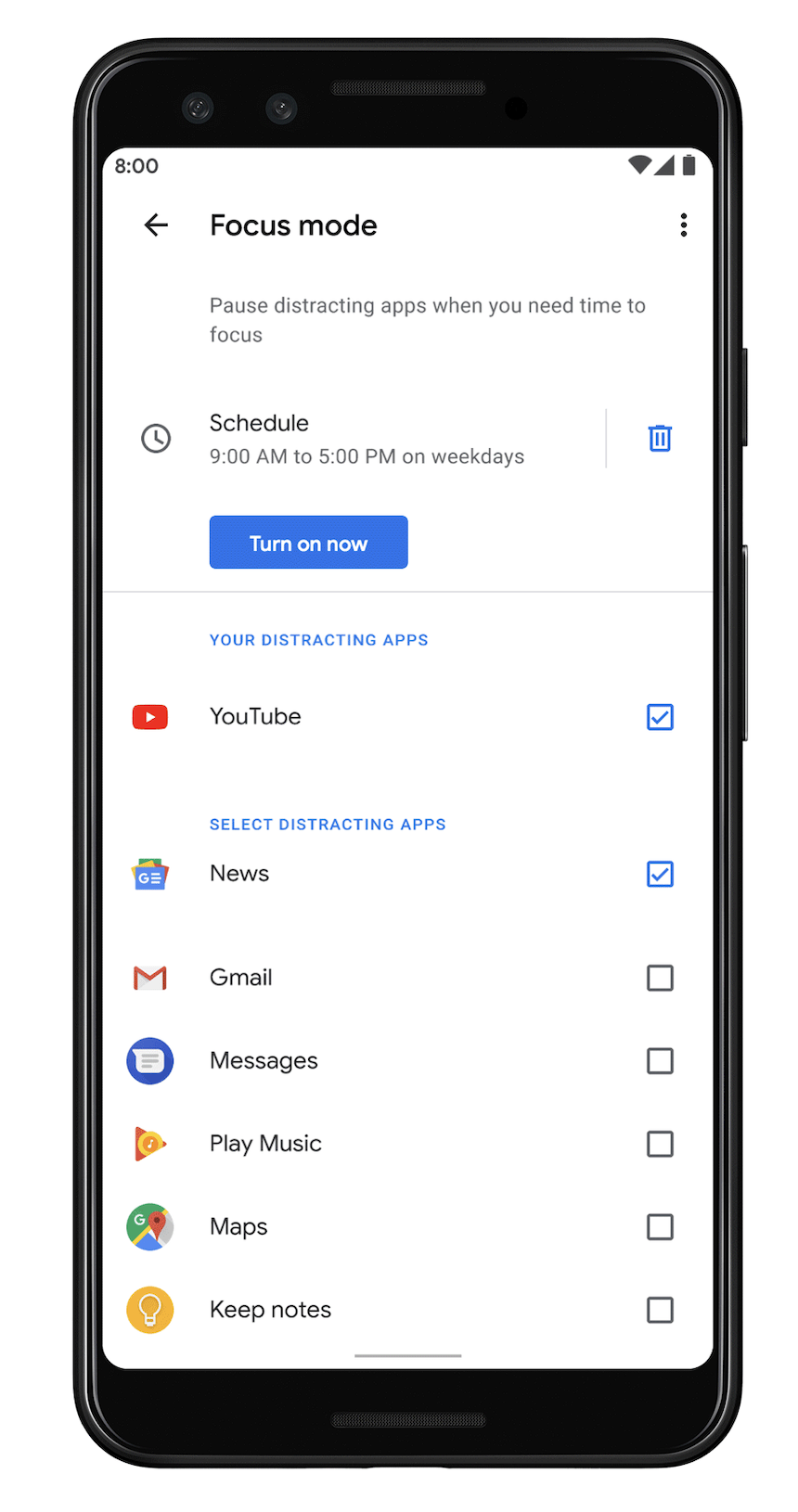
For Focus Mode to pause distractions:
- Open Settings.
- Tap Digital Wellbeing & parental controls > Focus mode.
- Select apps to pause (e.g., Instagram, YouTube).
- Tap Turn on now to activate, or Set a schedule for automatic activation during work hours.
- If needed, tap Take a break to temporarily unpause for a set time.
For Do Not Disturb/Modes setup:
- Open Settings > Modes > Do Not Disturb > Turn on now.
- Under Notification filters, allow exceptions: Tap People to permit calls from favorites or repeat callers; Apps for work tools; Alarms & other interruptions for essential sounds.
- Tap Add schedule (or Turn on automatically) to set for work times (e.g., weekdays 9 AM-5 PM).
- For custom modes: Tap Create your own mode, name it (e.g., “Work”), choose an icon, and configure filters/display options.
- Quick access: Swipe down from the top, tap Do Not Disturb, and select duration.
These configurations empower employees to tailor their devices for peak productivity, ensuring smartphones support rather than hinder work focus. By leveraging these latest features, you can reclaim control over your attention and workflow.