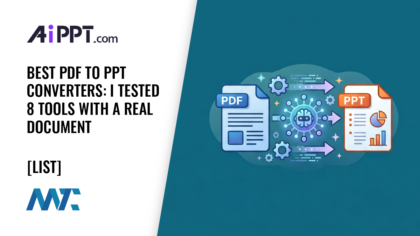
Best PDF to PPT Converters in 2026: I Tested 8 Tools with a Real Document
Disclaimer: All tools were independently tested using the same real document. No paid placements. Data sourced from official product pages and hands-on trial runs.
When you need to turn a static document into a presentation and convert PDF to PowerPoint, you generally run into two types of technology. Layout Converters (like Smallpdf or Adobe) act like a digital photocopier, attempting to reproduce the PDF visually by turning text boxes into editable shapes. On the other hand, AI Converters (like AiPPT) actually read the content, understand the context, and rebuild a clean, structured slide deck from scratch. This distinction is the difference between a PPT that looks like a PDF and one that feels like a professional presentation.
Quick Comparison Table
| Tool | Type | Best For | Free Plan | Rating |
|---|---|---|---|---|
| AiPPT | AI Converter | Professional slide deck creation | 2 generations per day | ⭐⭐⭐⭐⭐ |
| Adobe Acrobat | Layout Converter | Perfect visual fidelity | Limited online version | ⭐⭐⭐⭐ |
| Smallpdf | Layout Converter | Quick, one-off conversions | 2 files/day | ⭐⭐⭐⭐ |
| Canva | Hybrid | Creative redesigns | Genuinely useful free tier | ⭐⭐⭐ |
| iLovePDF | Layout Converter | High-volume batch processing | Basic access free | ⭐⭐⭐ |
| Nitro PDF | Layout Converter | Enterprise security & editing | 14-day trial | ⭐⭐⭐ |
How We Tested
Instead of simple one-pagers, we looked at a document that was 12 pages long, and included a lot of dense financial tables, high-resolution product photography, and multi-column text layouts: a stress test document – a yearly market report. Each of the tools was tested against four strict criteria: formatting accuracy (does the text jump?), editability (are the bullets actual bullets?), image handling (is the image resolution kept?), and conversion speed.
1. AiPPT: Best AI PDF to PPT Converter
Best for: Professionals needing a presentation-ready deck, rather than a converted file.
Our experience: We tested PDF to PPT conversions with the other tools and found AiPPT was the quickest one to convert, with slides that were clean and ready to edit. In contrast, Adobe did its best to replicate each individual line of the PDF document, whereas AiPPT cleverly organized my market data into sensible bullet points that seem like they were authored by a human.
Cons: Can format PDFs inconsistently, doesn’t handle complex documents well, and can create problems with duplicate page navigation.Pros: Generates structured layout and headers automatically; eliminates the “clutter” of PDF artifacts.
Pricing: free plan (2 daily uses); Pro plans begin at $9/month and include unlimited exports and advanced AI models.

2. Adobe Acrobat Pro: Best for Visual Fidelity
Best for: When the visual layout is critical and needs to be maintained 1:1.
Our experience: Adobe is still the leader in maintaining layouts, but it can be somewhat rigid. In my test, it was able to create a complex organizational chart without a problem, but the resulting PPT was almost 40MB, which is slow to share compared to the output of AiPPT that was kept down in size.
Cons: Not as easy to use as other tools, but it has the highest degree of accuracy in font matching and preserves vectors with unmatched fidelity.
Pricing: You will need a subscription to use the desktop version (around $19.99/mo), but you can use the basic free PDF to PPT online conversion.

3. Smallpdf: Best for Quick Online Use
Best for: Students or office workers looking for a quick conversion without signing up.
Our experience: Smallpdf is extremely fast, and it honors the “no-fuss” workflow. I uploaded the report, and within 10 seconds, I had a PowerPoint file, although I found that some of my tables were turned into flat images, but not text boxes!
Cons: no encryption, limited support for large files, and limited offline processing.
Pricing: free for 2 tasks a day, Pro plans are $12/month for unlimited access.

4. Canva: Best for Creative Redesign
Best for: To create a memorable and eye-catching presentation from a dull PDF.
Our experience: Canva not only converts, but it also imports. I dragged my PDF into Canva, and it offered me a choice to switch the style completely, but with a multi-column text block in my test document, it wasn’t always successful, and sometimes it overlapped.
Cons: Can be expensive, and the illustrations are not always used with the images.
Pricing: The free version is a strong option, and the Pro version costs $12.99/month for Magic AI features.

5. iLovePDF: Best for Batch Processing
B working with several small PDF files and converting them to individual PPT files in one go. This is the “workhorse” of the group. I tested with a set of 5 smaller PDFs, and it was also able to process them all without any problems, but the slide design was a bit simpler than the one that AiPPT creates for the slides already optimized for AI.
Cons: Not as fast as a dedicated graphics processor; user-configurable; very affordable.
Pricing: Prime cost is $0/month; Premium is just $9/month.

6. Nitro PDF: Best for Enterprise Security
Best for: Companies that have rigorous data privacy and compliance requirements.
Our experience: Nitro is a light version of Adobe. It worked with my test document’s financial tables better than Smallpdf, and the UI was a bit outdated, and no AI refinement features like there were with AiPPT.
Best for: Complex and expensive to use, particularly for users who are not tech-savvy.
Best for: Single payment or annual subscription (around $13 per month for teams).

Final Verdict
If it is important that your PowerPoint look exactly as your PDF – whether your PDF has flaws or not – then you might want to use Adobe Acrobat. For the majority of contemporary professionals, though, the aim is not only a conversion – it’s a usable presentation. In my opinion, AiPPT is the best PDF to PPT tool since it is basically an AI tool that does everything from a document to a deck, and the deck is well-designed and doesn’t need as much cleanup. If you need to perform one-off tasks that do not require a subscription, Smallpdf is the easiest to bookmark.