From Dead-End to Discovery: Turning Your WordPress 404 Page into a Smart Page
As I’ve reviewed my site in analytics, I’ve noticed that I was gettng a lot of visitors landing on my 404 page. The first action I take is to ensure that I didn’t remove a page without redirecting it. More often it’s another case, though.
It’s a common frustration: a user clicks a link expecting an answer, only to be greeted by a cold, generic 404 Not Found message. In the world of SEO and UX, a 404 page doesn’t have to be a dead end, it should be a path to relevant engagement.
By turning your error page into a discovery engine, you can retain traffic that would otherwise bounce back to Google.
Why Users Land on Your 404 Page
Before we fix the problem, we have to understand how users get lost. It rarely happens the same way twice:
- Broken External Links: Another website links to your content but mistypes the URL.
- Retired Content: You’ve deleted an old post or product without setting up a 301 redirect.
- Typos: A user manually types your URL into the browser and makes a fat-finger mistake.
- URL Structure Changes: You changed your permalink settings (e.g., from
/blog/post-nameto/post-name) and old social media shares are now broken. - Copy-Paste Errors: A user trims off the last character of a link when sharing it in an email or Slack message.
The Strategy: URL Parsing to the Rescue
Instead of showing a search bar and asking the user to do more work, we can use the slug (the part of the URL after your domain) to guess what they were looking for.
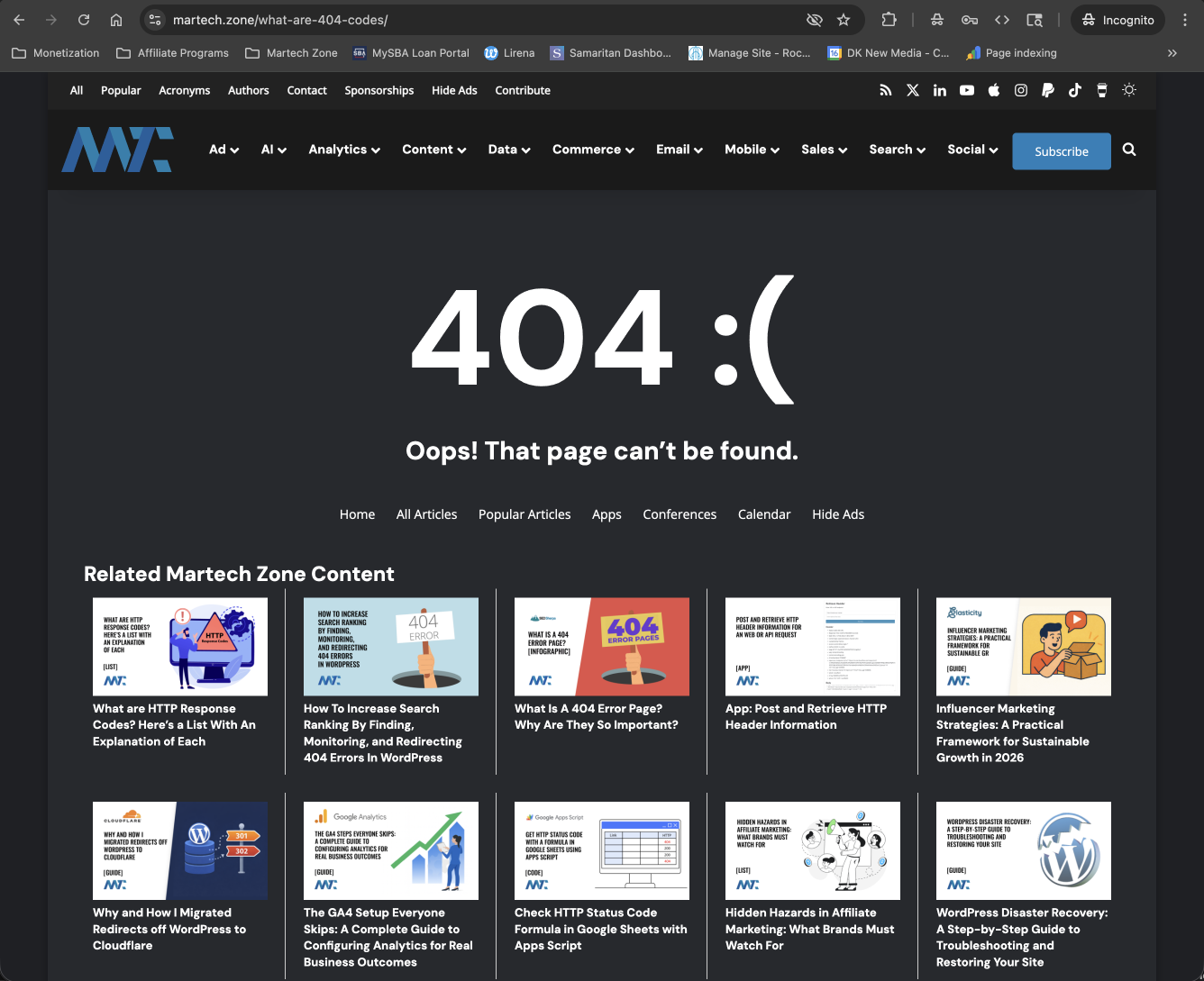
If a user tries to visit mysite.com/what-are-404-codes and that page is gone, our code will:
- Parse the URL: Break the slug into individual words.
- Clean the Data: Strip out stop words (what, are, is, the, at, with) that don’t add meaning.
- Search Automatically: Run an internal WordPress search using the most relevant keywords (404, codes).
- Display Results: Show the user the most relevant articles immediately.
- Provide a Fallback: If no matches are found, show your latest “Greatest Hits” so they stay on the site.
Here’s an example on Martech Zone:
Implementing the Custom 404.php
To implement this, you will need to edit (or create) a 404.php file in your WordPress Child Theme. Using a child theme ensures your changes aren’t wiped out when your main theme updates.
The Code
Copy and paste this into your 404.php file. This is a generic, clean version designed to work with almost any theme, but you’ll likely want to review your page.php template for the appropriate structure and classes.
<?php get_header(); ?>

<main id="primary" class="site-main">
    <section class="error-404 not-found">
        <header class="page-header">
            <h1 class="page-title">Oops! That page can't be found.</h1>
            <p>It looks like nothing was found at this location. Perhaps one of the links below can help?</p>
        </header>

        <div class="page-content">
            <?php
            // 1. Get the requested URL path
            global $wp;
            $request_path = trim($wp->request ?? '', '/');

            // 2. Clean the path and extract keywords
            $stop_words = ['the', 'and', 'for', 'with', 'was', 'this', 'that', 'from', 'how', 'why', 'is', 'at'];
            $keywords = array();

            if (!empty($request_path)) {
                // Split by slashes and dashes
                $parts = preg_split('/[-\/]+/', $request_path);

                foreach ($parts as $term) {
                    $term = sanitize_text_field($term);
                    // Only keep terms longer than 2 chars and not in our stop list
                    if (strlen($term) > 2 && !in_array(strtolower($term), $stop_words)) {
                        $keywords[] = $term;
                    }
                }
            }

            // 3. Limit to top 4 unique keywords for search accuracy
            $keywords = array_slice(array_unique($keywords), 0, 4);
            $search_string = implode(' ', $keywords);

            // 4. Run the Query
            $args = array(
                'post_type'      => 'post',
                'posts_per_page' => 5,
                'post_status'    => 'publish',
                'ignore_sticky_posts' => true
            );

            // If we have keywords, do a search. Otherwise, just get latest.
            if (!empty($search_string)) {
                $args['s'] = $search_string;
                echo '<h2>Suggested Articles Based on Your Search</h2>';
            } else {
                echo '<h2>Latest From Our Blog</h2>';
            }

            $related_query = new WP_Query($args);

            if ($related_query->have_posts()) :
                echo '<ul class="suggested-results">';
                while ($related_query->have_posts()) : $related_query->the_post(); ?>
                    <li>
                        <a href="<?php the_permalink(); ?>"><?php the_title(); ?></a>
                    </li>
                <?php endwhile;
                echo '</ul>';
                wp_reset_postdata();
            else :
                // Secondary Fallback: If search fails, show latest posts anyway
                echo '<p>We couldn\'t find a direct match, but you might like these:</p>';
                $latest_args = array('post_type' => 'post', 'posts_per_page' => 5);
                $latest_query = new WP_Query($latest_args);
                if ($latest_query->have_posts()) :
                    echo '<ul>';
                    while ($latest_query->have_posts()) : $latest_query->the_post(); ?>
                        <li><a href="<?php the_permalink(); ?>"><?php the_title(); ?></a></li>
                    <?php endwhile;
                    echo '</ul>';
                    wp_reset_postdata();
                endif;
            endif;
            ?>
        </div>
    </section>
</main>

<?php get_sidebar(); ?>
<?php get_footer(); ?>
How to Build This Into Your Theme
- Access your files: Use SFTP or your Hosting Control Panel File Manager.
- Navigate to your Child Theme: Go to
/wp-content/themes/your-child-theme/. - Create/Edit 404.php: If the file doesn’t exist, create it. If it does, back up the original content first.
- Standardize the Hooks: Notice the use of
get_header(),get_sidebar(), andget_footer(). These ensure your 404 page looks like the rest of your site. - Style It: The code uses standard WordPress classes like
site-mainandpage-content. You can add custom CSS to yourstyle.cssfile to make the Suggested Articles list look like a grid or add thumbnail images.
By implementing this, you turn a moment of user failure into a moment of helpful discovery—keeping your visitors engaged and your SEO bounce rates low.